Modifying a role on Bleexo

Defining a role on Bleexo allows you to manage access rights for a group of people. This can be linked to the person's role in your organization but it is not mandatory. Keep in mind that the role on Bleexo will only allow them to access certain information on the platform.

To modify the access rights for a role, go to the "Roles" tab in Administration. You have to click on the role you want to modify, and its description sheet appears. You define here the visibility and the access rights according to the modules you have subscribed to:

- You can customize the role name,

- At the Global level, you define the scope of access: you choose the hierarchical depth for each role, i.e. whether this role will have visibility on the whole company or only on its teams.

- the My Bleexo part concerns the home page and the My Account page, accessible to all on Bleexo :

  • the Pulse employee view: if you want to give an overview of the Pulse surveys, you can choose between 3 levels of visibility: none (show nothing), only the engagement score (if the question was asked) and the participation rate or by surveys (participation rate, questions asked in each survey, the average obtained and the score the person gave),
  • the population of the employee view: here you choose the level of this information, i.e. whether the averages and participation rates are those of the whole company or those of the reference department,
  • choose if this role will be able to see its segments,
  • and finally, define if this role will be able to change the language of its platform.

- the Pulse part concerns the module of the same name. Define if this role can :

  • respond to surveys
  • access the results and with what options: respond to comments left, see the different benchmarks.

- the Ask part: you define the access rights to the module of the same name, if the people in this role will be able to :
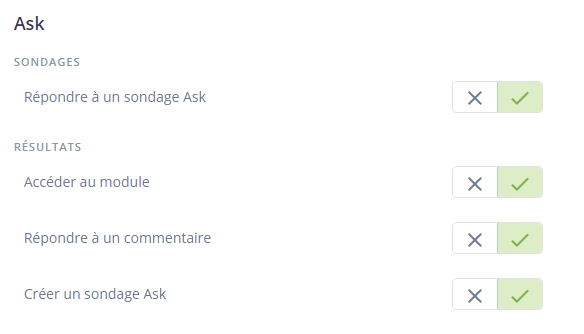
  • respond to surveys,
  • access the results and if so, whether they can respond to comments and create surveys themselves.

- the Coaching part: you define if this role has access to the module. If yes, you specify if this role will be able to :

  • pin tips for themselves, for their department of reference or for the whole company,
  • manage the coach's advice (delete or modify it),
  • access the consolidated view.

- the 360° feedback part: here you select the level of access rights for a role:

  • people will only be able to take surveys, or if they can create 360-degree surveys for themselves or if they can create them for others,
  • If they can create 360° feedback surveys, you can let them customize their questionnaires.

- the Administration part: here you authorize access to the administration part of the platform. In general, only the platform administrators have access to it.

Once you have made your changes, don't forget to click on the "Update" button at the bottom right to save them.

NB: In this section, you will only see the modules that are available on your platform. If you have not subscribed to Coaching, then you will not see the access rights options. Each role is customizable and you can create as many roles as you need.

🚨 New from September 29, 2023🚨

In the Pulse Collaborator View, you will always have 3 display options:

  • The "Not displayed" view
  • Commitment+participation" view
  • The "Surveys" view

You will also be able to condition the view of your collaborators to three different scopes in the Population of the Collaborator view: it can be conditioned either to "The whole company", "Its departments", or "The company and its departments":

  • The company: this will give the employee an overview of the company's overall results.
  • Departments: this will give the employee an overview of his or her departments' results.
  • The company and its departments: this allows the employee to choose between an overview of the company's overall results OR the results of its departments.

Our Webinar Training

Register for one of our weekly webinars
All rights reserved © 2023 Bleexo