To go further in the analysis of the results, you can apply certain filters and thus focus on a particular population or team.
There are 3 types of filters:
the "See as" filter: it allows you to put yourself in the place of a person, a manager for example, and thus see the results of his team.
NB: even if a manager does not have the access to see the results of his team, the administrator can use this filter to access the results of his team. Teams (and therefore the hierarchy) are created directly from the user file, by identifying the managers for each user.
The "Perimeter" filter allows you to select the hierarchical depth: "Company" corresponds to the global level, "Teams" displays the entire downward hierarchy (n-1, n-2, n-3,...) and finally, the "N-1" level allows you to select only the people you have in direct management. It is possible to apply these filters after selecting the view of a particular manager with the filter "View as".
NB: the manager's answers are not included in his filters.
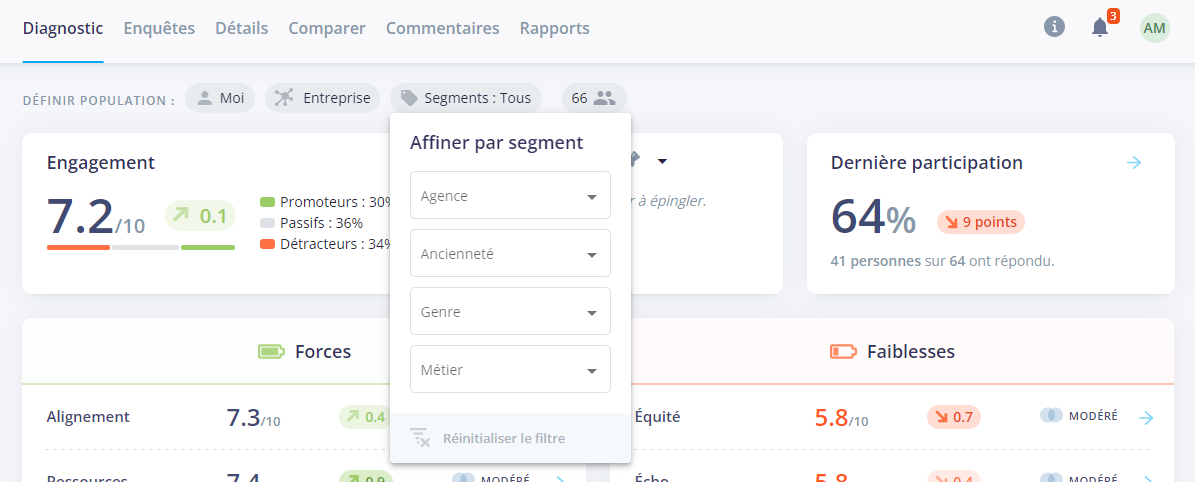
The "Segments" filter allows you to select one or more segments set up on the platform. This allows you to focus on a particular population. You can select several filters, for example, people with +5 years of seniority in Toulouse.
Each time a filter is applied, you will see the number adjust on the platform: by clicking on this number, you will find the list of people who make up this team/group
NB: these filters are applicable on all the tabs of the Pulse module
🚨New from September 29 🚨
The different types of filter will change in appearance, and new functions will be integrated into them.
The "Define population" function has been enhanced by the integration of "View as" in the perimeter. The "Me" button will no longer exist.
In the perimeter filter you will find 3 functions:
"Company": global perimeter.
"Hierarchical": defaults to your personal view (yourself). You can select a manager's name to access his or her teams' results "as". You can also choose "Teams" to display the hierarchy downwards, or select level N-1.
"Matrix: see the results of the department(s) for which I am responsible.
The "Segments" filter:
so-called "useless" segments will now be hidden: if you have access to a defined perimeter (team and/or segment), Bleexo will now indicate next to each filter the corresponding population according to the selected segments. To simplify ergonomics, segments corresponding to an empty population will be stored in a dedicated "Empty segments" section. This will enable you to concentrate on the filters that really matter to you.
Next to each segment, you'll find the population belonging to that segment. The population will be modified according to your perimeter and other filters applied.




.png)