Segmentation allows you to define the filters that will be used to read the results of your surveys.
You define them according to the groups you wish to observe, taking into account the confidentiality threshold. It is not always relevant to go down to the finest mesh of your hierarchy: if this mesh does not allow you to pass the confidentiality threshold and thus to access the results of this group, it will be unusable.
Reminder on the confidentiality threshold: Threshold that allows to preserve the anonymity of the respondents. Below 5 respondents (adjustable number), the results are not visible (either a segment or a team). However, the results of the people who responded are visible on the overall results of the company.
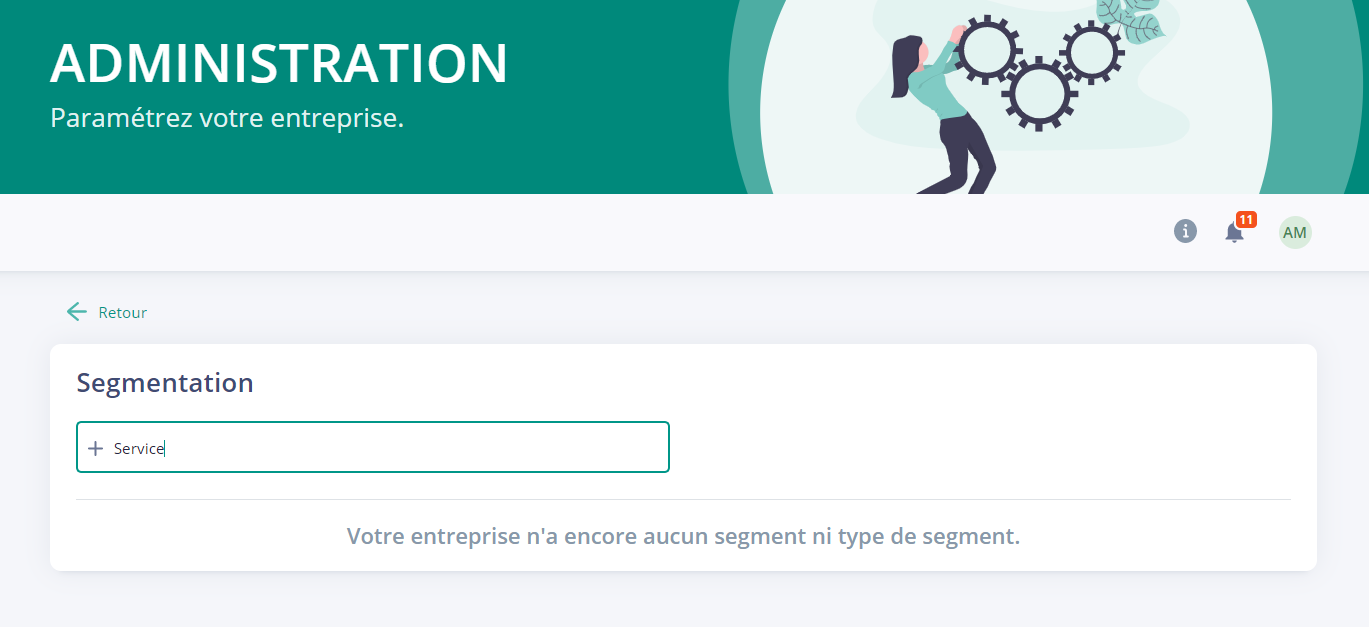
To create these segments, go to your platform's Administration > Segmentation module.
To create a new Segment Type, enter the name and press "Enter".
Once the segment type has been created, enter all the segments that belong to this family.
And include all the segments you need to analyze your survey results.
If you want to make a change on a segment, just move your mouse over it, three dots appear and by clicking on them, you find two options: Change name or Delete.
Some examples of common segmentation:
Services: Sales, Marketing, After Sales Service, Production, ADV, IT,...
Careers : Field sales representatives, Inside sales representatives, Sales secretaries,...
Department or BU: Sales, Logistics, Technical, Operations, Management,...
Gender: Male, Female, Other
Age groups: under 20, between 20 and 25, between 25 and 30,...
Seniority brackets: less than 6 months, between 6 months and 2 years, between 2 years and 5 years,...
Contract types: permanent, fixed-term, work-study, temporary, etc.
Work modes: Face-to-face, Partial telecommuting, Full Remote, Hybrid, etc.
Location (city, country,...) : Paris, London, Toulouse, Stockholm, Berlin, NY, Milan,... or France, Belgium, Germany, Italy, Thailand, USA,...
...
NB: the segments are visible to all people who have access to the results. However, if they only have visibility on their teams, they will not have access to the results of teams that are not part of their hierarchy.
For example: I am a manager in the Sales division. I will see all the existing filters on my platform, but if I apply a filter to see the HR results, I won't have access to them because my rights don't allow me to. No one from the HR team is part of my team, so I don't have access to the results.
Segments can be modified at any time to adapt to your news. Creating or deleting segments during the year has no retroactive effect on your past surveys.
NB2:Segmentation is not retroactive. In other words, you cannot use segments created post-survey to analyze the results of this survey with these new filters. Newly created segments can only be used for a subsequent survey, provided your user database has been updated.
The "Segmentation" tab will change its appearance - all the information already present on your platform will be retained.
How do I create a segment type? To create a new segment type, click on "Add a segment type" and enter the "Segment type name":
Once a segment type has been created, enter all the segments belonging to this family using the "Add segment" button:
The new display will allow you to :
view number of segments by segment type
see the number of people belonging to each segment
arrange the segments in the order of your choice
Segments can be arranged in 3 different ways:
In alphabetical order by clicking on the "Name" column header
By manual order using the handle on the left
In manual order by entering the number of each segment
How do I edit a segment type?
You can also define a segment type as a department. This allows you to define segment managers. They will then have access to the results of the segment(s) in question.
To define a segment type as a department, or to modify a segment type, click on the three dots at top right and then on "Modify" :
You will then have access to the parameters, simply check "Is a department" and update :
NB: some types of segments are suitable (Department, Location, Job, Agency, Management....), while others are less relevant (Age, Seniority, Gender, etc.).
Once a segment type has been defined as a department, you have two further options:
You can decide that this department is Benchmarkable (Internal Benchmark)
You can decide that collaborators will be able to consult the results of their department(s) in the Pulse Collaborator View.
These two possibilities are independent of each other.
NB: choosing a department's parameters (Benchmarkable and/or Accessible in Collaborator view) allows you to limit the number of options available, and therefore to authorize only those segments relevant to Benchmark and Collaborator view.
Finally, you can set a segment type to "Multi-segment": this will allow you to assign a user to several segments of this type.
For example, if I'm working on a cross-functional project, I may have to work in both the Sales and Tech departments.
How do I define a segment manager from the segmentation tab?
To define a segment manager, click on the three dots next to the segment name and then click on "Modify" :
You can then add one or more segment managers:
You can also add segment managers using a csv file. By clicking on the 3 dots at the top right of the page, you can export a csv file, fill it in and import it back into the platform:
NB: If you wish to enter "Segment managers", a .csv file must be filled in for each segment type.




.png)


.png)
.png)
.png)
.png)
.png)